PlayCanvas Stage
PlayCanvas Stage is an editor where you and your coding agent work on PlayCanvas apps together. Instead of describing where something is, you point at it: click an entity or drag across an area, and the agent gets its entity path, the 3D point and a capture of what you saw. Move objects with gizmos, press Apply, and the agent writes your edits into the source.
Stage attaches to any running PlayCanvas app, whatever its stack, and shows it in a viewer in your browser with play and pause, gizmos, comments and the PlayCanvas Inspector beside it. It works with Claude Code and Codex, and runs entirely on your machine.
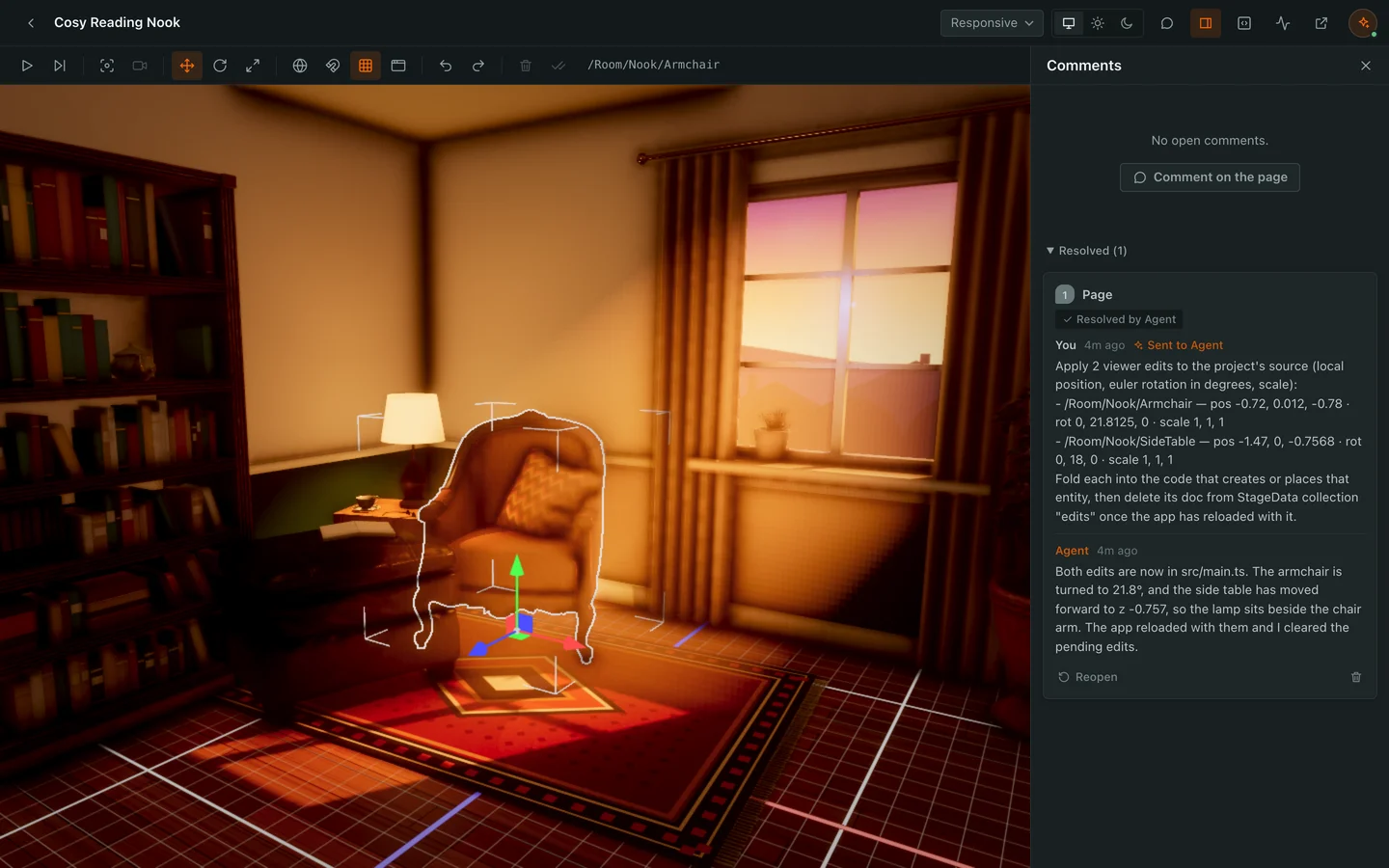
PlayCanvas Stage is open-sourced under an MIT license on GitHub. Version 0.1.0 is a prerelease, so expect changes between versions.
Requirements
- Node.js 22.18 or later
- Chrome or Chromium
- An app on PlayCanvas Engine 2.23 or later
- Claude Code 2.1.275 or later, or Codex
Installation
Install Stage as a plugin in your coding agent.
Claude Code
claude plugin marketplace add playcanvas/stage
claude plugin install playcanvas-stage@stage
Or, in a session, run /plugin install playcanvas-stage --marketplace playcanvas/stage, then /reload.
Codex
codex plugin marketplace add playcanvas/stage
codex plugin add playcanvas-stage@stage
Getting Started
Ask your agent for a scene ("build my desk in 3D at real scale"), or point it at an app you already have.
- A new scene: the agent scaffolds a project with
create-playcanvas, starts its dev server, attaches Stage to it and opens it in your browser. - An existing app: the agent attaches Stage to the app's running dev server. Stage proxies the server and adds its tools when the page loads, so the app's own hot reload keeps working and nothing is added to your source except the edits the agent writes.
Stage finds the app through the Engine's devtools hook, so it works whatever the app is built with. An app that bundles the Engine into its own code needs one extra line, which the viewer shows you.
Every stage is listed in the gallery at http://localhost:47318/stages. Stage never starts or stops your dev server. While the server isn't answering, the viewer shows a waiting banner and attaches when it comes back.
Play, Pause and Select
The toolbar above the app plays and pauses it with ⌘+P (Ctrl+P on Windows and Linux). Pausing stops the app's updates, input and audio, and an editor camera takes over while the game camera stays where the app put it:
- drag to orbit, middle-drag or Shift+drag to pan, and scroll to zoom
- right-drag to look around and W/A/S/D/Q/E to fly
- F to frame the selection, or the whole scene, and orbit it
- ⌥+⌘+P to step the app one frame
Paused, click an entity to select it.
Move, Rotate and Scale
With an entity selected, switch the gizmo with 1 (move), 2 (rotate) and 3 (scale). Every toolbar button shows what it does and its key on hover.
| Key | Action |
|---|---|
| 1 | Move: drag an arrow or plane of the gizmo |
| 2 | Rotate: drag a ring of the gizmo |
| 3 | Scale: drag a handle of the gizmo |
| X | Switch the gizmo between world and local axes |
| Shift | Hold while dragging to snap: move in 0.1 m, turn in 15° and scale in 0.1 steps |
| G | Show or hide the ground grid |
| Ctrl/⌘+Z | Undo |
| Ctrl/⌘+Shift+Z | Redo |
The grid only shows to the editor camera. It never appears in comment captures and can't be selected.
Apply Edits to the Source
Every edit is saved as you make it, shows in every open view of the stage and survives reloads. Nothing changes in your source until you decide:
- Apply sends the edits to the agent, to write into the source.
- Discard puts the edited entities back where the app placed them, and sends nothing. It can be undone.
Comment on What You See
Press C or the Comment button to enter comment mode (a playing app pauses). Then:
- click an entity to comment on it, or drag across an area, empty space included
- Shift+click adds another object to the open comment, and Shift+drag adds everything an area covers
- outside the canvas, any element of the page takes a comment, and a drag that starts on text quotes it
A comment is pinned to the 3D point you placed it at, and the agent gets the entity's path, that point and a capture of what you saw. You can attach up to 4 reference images to a comment or reply by pasting, dropping or picking them.
The comment box has two buttons. Comment posts the comment. Send to Agent posts it and hands the thread to the agent, which reads it, does the work and replies in the thread without you typing anything in the session. Comment mode stays on until Done commenting, C, or a second Esc.
A thread sent to the agent shows where it is:
| Status | Meaning |
|---|---|
| Queued for an agent session | No session has picked it up yet |
| Working on it… | The agent has received it |
| Hasn't replied yet | No reply within 10 minutes |
Deleting a thread while the agent is working on it withdraws the request: the agent is told to drop it and revert the changes it made for it.
The circle at the right of the header shows whether a session is linked to the stage. Agent is watching means comments reach the agent straight away. No agent session means comments you send wait until a session links the stage; paste the stage's URL into a session to link it.
Preview on Devices
The device menu shows the app at a phone or tablet viewport: Snapchat Web Lens (360×640, portrait only), iPhone, Android, iPad or Responsive.
Inspector and MiniStats
The Inspector button in the header opens the PlayCanvas Inspector beside the app, as a read-only view of its hierarchy, cameras, assets, materials, memory and more. Its selection is shared with the viewer, so selecting a row in the panel selects the entity in the view.
The MiniStats button shows the app's frame time, GPU and CPU timings, draw calls and memory over its canvas, and stays on across reloads until you turn it off.
Claude Code and Codex
Both agents share one local server and the same set of stages.
- Claude Code: the plugin's comment monitor wakes an idle session as soon as you send a comment or press Apply.
- Codex: Codex has no monitors, so the plugin starts a watcher on your first message in a session that hands each comment to
codex queue(experimental in Codex). Codex asks before each Stage tool call unless you approve the server's tools.
Settings
Set these environment variables before starting your agent:
| Variable | Default | Effect |
|---|---|---|
STAGE_PORT | 47318 | Viewer and API port |
STAGE_DIR | ~/.playcanvas-stage | State directory |
STAGE_AUTO_OPEN | on | 0 stops opening new stages in the browser |
CHROME_PATH | auto | Chrome binary for headless previews |
The local server starts on the first Stage tool call and keeps running after the session ends. Stop it with:
kill $(jq .pid ~/.playcanvas-stage/server.json)
Data and Network Use
Stage has no telemetry and makes no outbound requests of its own. Its server binds to 127.0.0.1 only and keeps all state in ~/.playcanvas-stage. Scaffolding a new project runs npx create-playcanvas@latest from npm. Any other traffic is only what your app loads.
Known Limitations
- Safari may not resolve the
*.localhostaddresses each stage runs on, so open the viewer in Chrome. - An app that bundles the Engine into its own code needs one extra line before Stage can find it. The viewer shows the line to add.
Learn More
- PlayCanvas Stage on GitHub, with the full plugin reference
- Developing with AI
- Report an issue